In the past when Zapier was new to the Marketo space, the API had to be pretty customized in order to get it to work well. Nowadays, the integration out of the box between Zapier and Marketo seems seemless but has its flaws. For one, Marketo can only trigger based off of new leads. This has caused a fuss in the Marketo community concerning users who are trying to send interesting moment data to an outside CSM like Zendesk Sale.
After doing a bit of troubleshooting, I was able to create a workaround using the Webhook function. This will allow you to send any type of data from Marketo into Zapier and connect that data to an outside CSM. In this example, we will be connecting Zendesk Sale to Marketo.
Step 1. Create a Zap!
Instead of using the Marketo integration we are going to go with Webhooks by Zapier
On the EVENT area, use the“Catch Hook” Function
Sometimes CATCH HOOK can bring in fields with quotations around them which can cause many issues later on when your trying to sync the direct field. We can fix this using the formatting zap
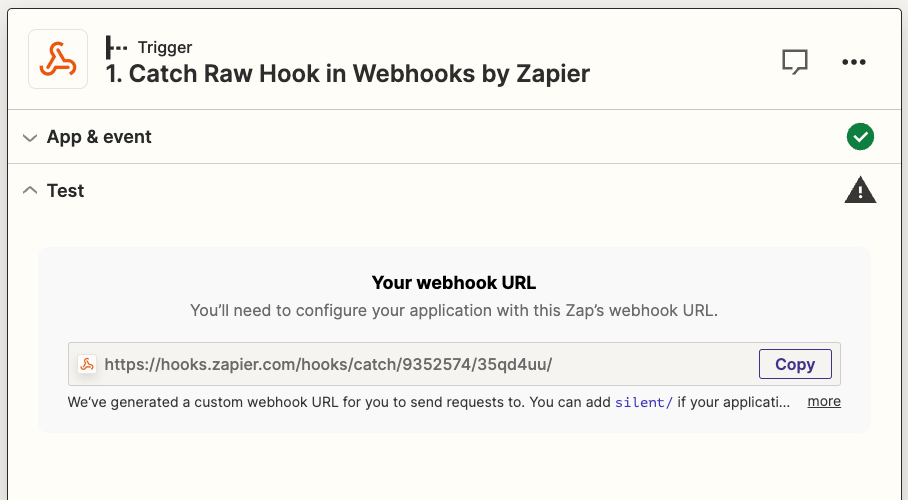
Copy the WEBHOOK URL
This will be needed to make sure that we connect Marketo to this URL in order to send data.
Step 2. Create Webhook inside of Marketo Using WEBHOOK URL, wecan now begin creating the webhook inside of Marketo
1
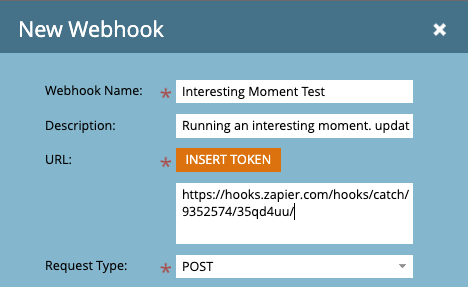
In the admin area, click on Webhooks on the left
Select NEW WEBHOOK
Give your webhook any title and description and be sure to copy the URL from Zapier into the URL portion(DO NOT USE TOKENS IN THIS STEP).
Because we are sending information, we need to make sure the request type is POST
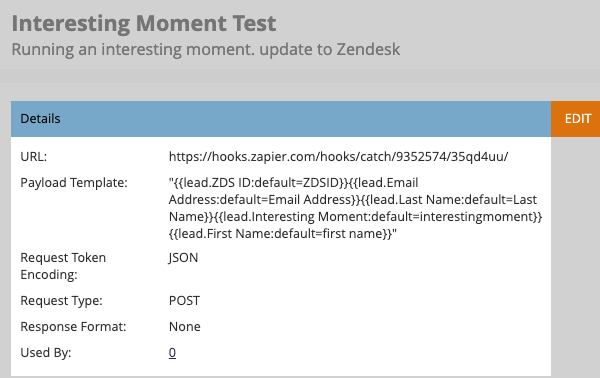
Create your template: This will tell Marketo what kind of data you want to send over. For the sake of this test, we will send over first, last, email, interesting moment. You can use the token tool to grab these tokens.
MAKE SURE TO ADD QUOTATIONS AROUND THE FULL PAYLOAD
After you have selected your tokens and put quotations aroudn the payload, you can now update the request token to JSON file. Leave the last field blank.
Your webhook should now look like this:
Its good to note we added ZDS ID in order to ensure we find the right lead in ZENDESK
The ZDS ID was added as a custom field and allows us to find the correct lead in Zendesk
Step 3: Create Web-hook Trigger
The webhook will not send any data without a trigger so before we can test this in Zapier, we need to make a trigger in Marketo first.
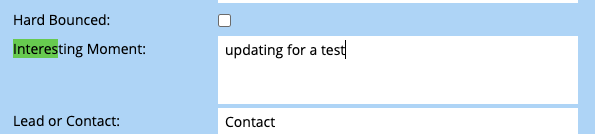
With this logic, as soon as an interesting moment is done, it will trigger a callout to the webhook. I will test this by updating a leads interesting moment and checking in Zapier:
In the activity log of this test lead, you can see that once the interesting moment was done, it called out the webhook. This will send this leads“payload” data to Zapier.
Step 4: Finish Zap
Once the test is successful, we will then go to our next step which is to format key field data.
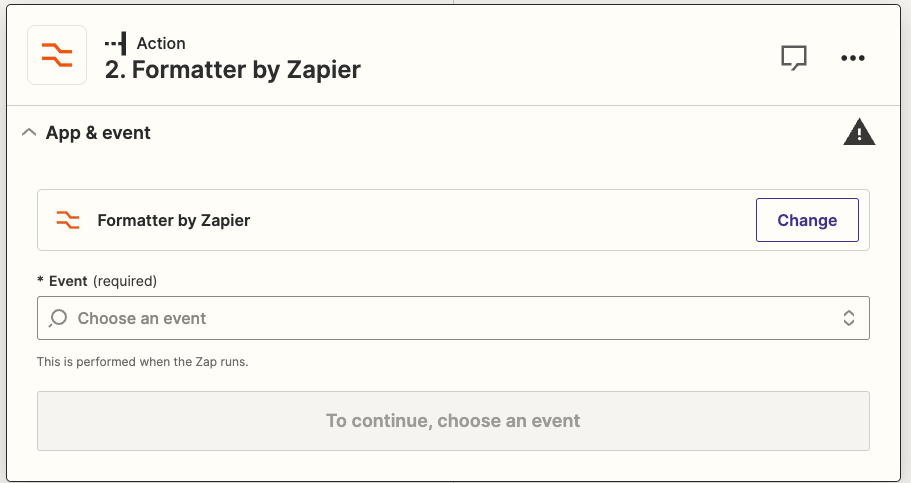
using the Formatter by Zapier. This will allow us to remove the quotation marks from key fields that will be used to find the right lead.
FIND LEAD MEANING
The webhook has now allowed us to send data to Zapier, now we will need to use the ZDS ID to hook to the correct lead. Normally Marketo uses Email as a unique identifier but in Zendesk, this isnt the case.
Make sure you select text event
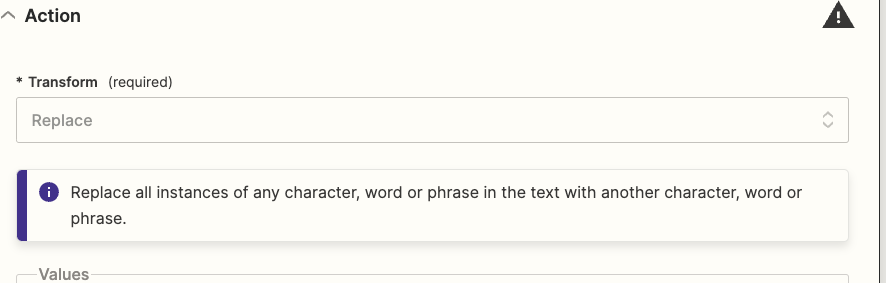
For transform, we will go with REPLACE
Afterwards,we will input the field that we wish to format. In this test it will be the ZDS ID.
We will look for the quotation mark and replace it with an empty field(will delete it)
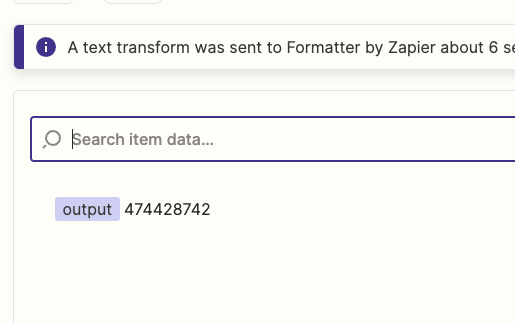
Once we’ve tested the step, the output will be the ZDS ID minus the quotations
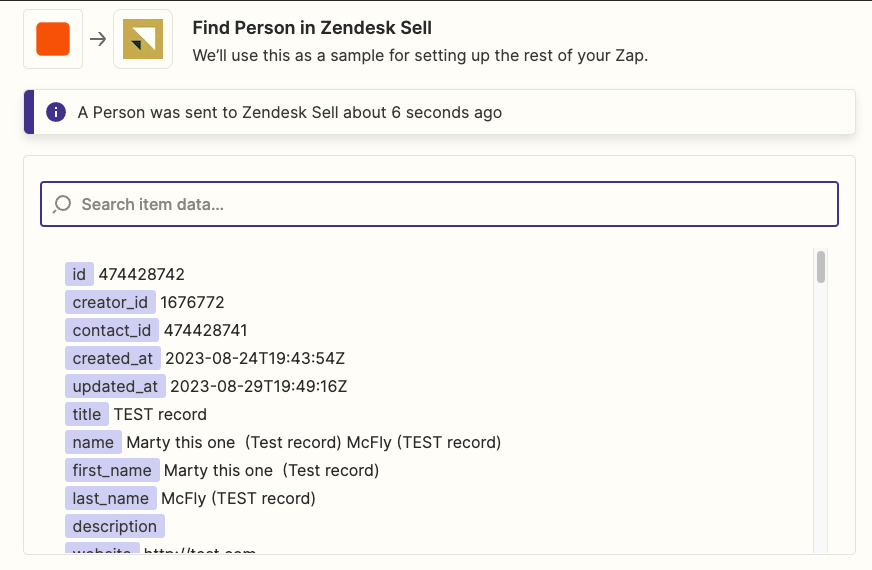
Next we will use this field in the“Find Lead” function
Be sure that the lead id, is the formatted version, after that it will find the lead/person based on their Zendesk status.
Step 5. UPDATE LEAD DATA
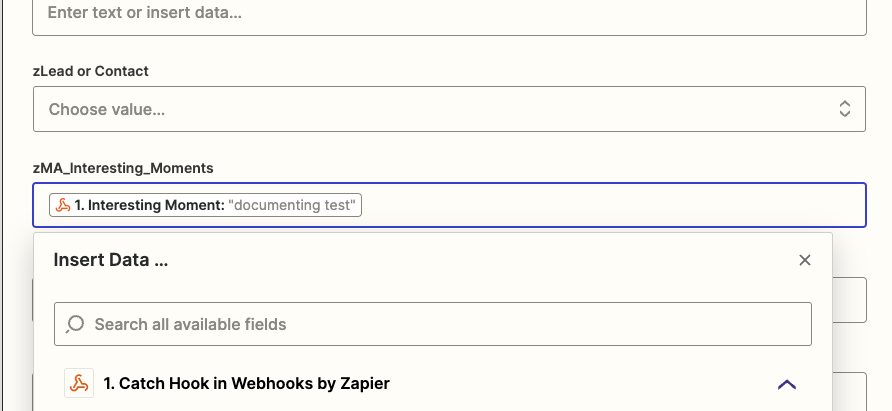
Now that we have imported the lead information, formatted the field and found the right lead – we can now update the data fields based on the PAYLOAD of the lead.
This means we can update the zendesk fields based on the token values we selected in the webhook inside of Marketo
In this example we sent the interesting moment data over to a custom field created in Zendesk.
 (909) 474-2386
 Suwanee, GA












Leave a Reply